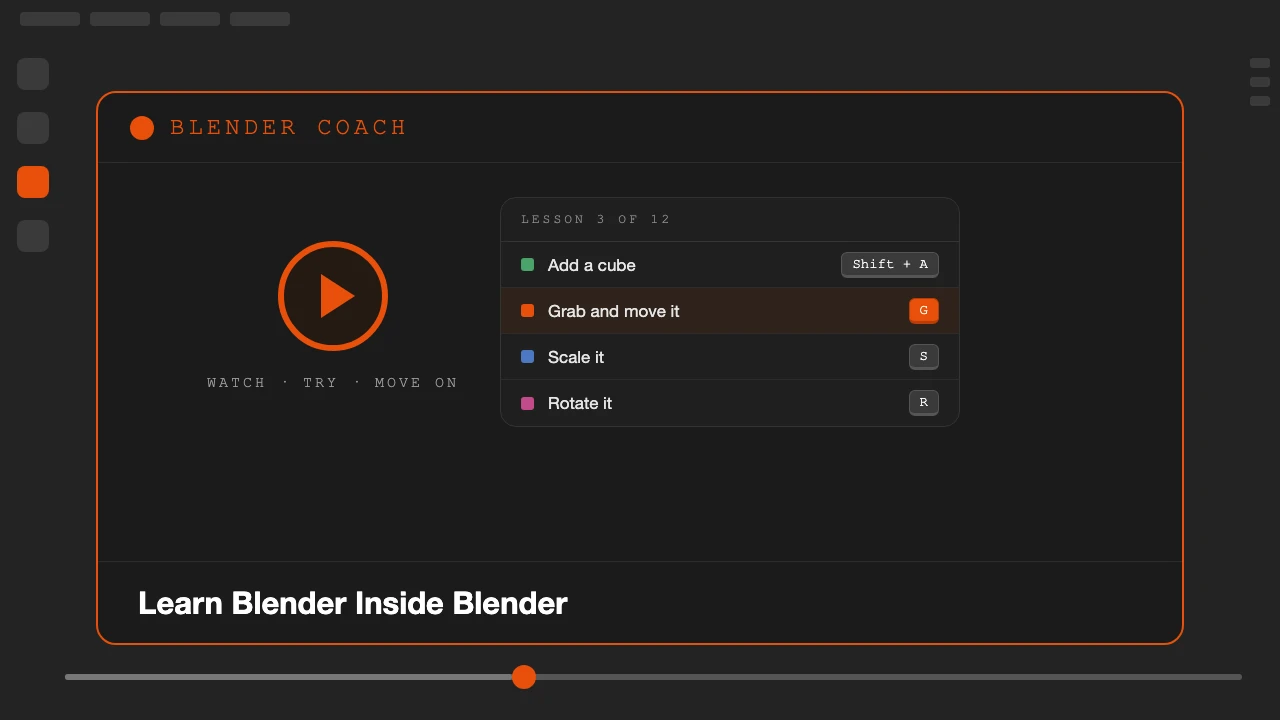
Learning Blender usually means juggling two windows. You play the tutorial, pause it, switch to Blender, try the shortcut, miss a step, go back to the video, and repeat. Every switch breaks your focus, and by the third rewind it is easy to give up or to copy along without really learning anything.
Blender Coach fixes that by putting the lesson directly inside Blender. The lesson runs in the 3D Viewport sidebar, with instructions displayed over the viewport. You see the action demonstrated in your own scene, then you perform it yourself, without ever leaving Blender.
Blender Coach is available on Superhive.
How Blender Coach Works
Every lesson follows the same simple loop: Watch, Try, Move On.
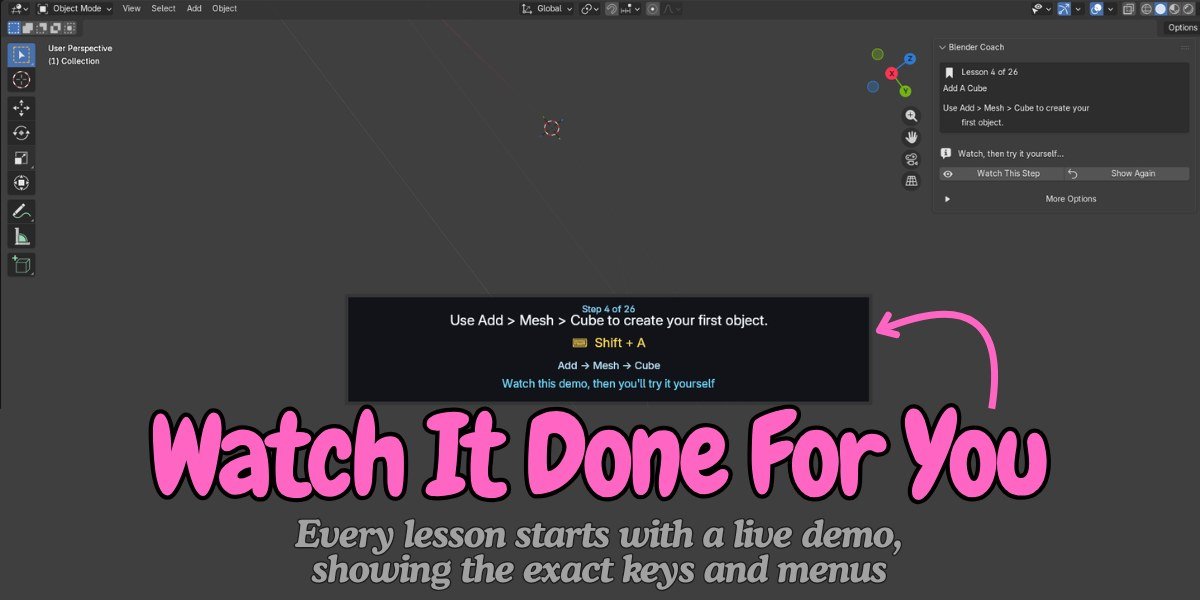
- Watch. Blender Coach demonstrates the current step directly in your viewport. A simple banner shows what you need to do, the shortcut to use (such as G, Shift + D or Ctrl + R) and the menu path when there is one (such as Add > Mesh > Cube).
- Try it yourself. Once you have seen the demonstration, the scene returns to its starting state. Now it is your turn to perform the same action in your own Blender scene.
- Move on. For most practice steps, Blender Coach automatically detects when you have completed the action and moves to the next step. If it does not detect your action, click Continue. There are no complicated checks and you never get stuck.
8 Courses, 111 Lessons
Blender Coach gives beginners a structured path through the most important Blender fundamentals, all included in the add-on:
- Blender Interface Basics: 26 lessons
- Materials & Shading Basics: 13 lessons
- Your First Simple Model: 12 lessons
- Lighting & Camera Basics: 11 lessons
- Intro to Animation: 13 lessons
- Edit Mode Modeling Basics: 11 lessons
- More Modifiers: Array & Solidify: 12 lessons
- Organizing a Scene: 13 lessons
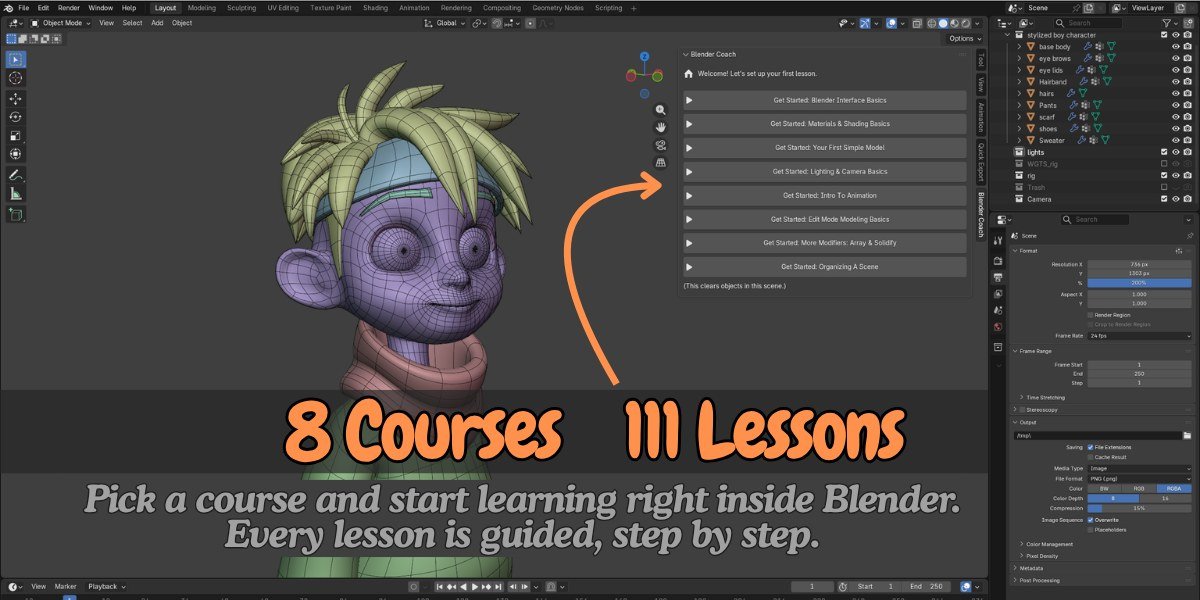
Starting a course clears the objects in the current scene and creates the scene required for the lesson. Save your work, or open a fresh Blender file, before you start a course.
Built for Absolute Beginners
Blender can feel overwhelming when you see dozens of tools, panels and settings at once, so Blender Coach keeps its own interface simple. The main panel focuses on one large action at a time: Start Learning, then Continue Learning. Advanced controls such as playback speed, step jumping, autoplay and creator tools stay hidden behind More Options, so beginners get a clean interface without clutter.
Your progress is saved too. Close Blender and come back later, and Continue Learning takes you back to the lesson where you stopped. You can clear your saved progress at any time from Preferences.
Works Offline, No Account Needed
Blender Coach does not require an account, a login, an internet connection or any online service. The lessons are included with the add-on and run directly inside Blender, so you can learn wherever you work.
Learn by Doing, Not Just Watching
Instead of watching someone else model while you follow along in another window, each lesson gives you a chance to perform the action yourself. That has a few practical benefits:
- One window, one flow. Everything happens inside Blender, so there is no constant Alt-Tabbing.
- Muscle memory. Shortcuts are shown alongside every relevant action, so you learn the keys while you use them.
- Small, manageable steps. Most lessons focus on a single action, so progress never feels overwhelming.
- Short sessions. Have ten minutes? Continue from where you stopped and finish a few lessons.
- Mistakes are part of learning. Undo is introduced early, so experimenting becomes part of the workflow.
- Good habits early. The courses also teach naming objects, saving files and organizing scenes, not only tools.
Control the Lesson Your Way
You can replay the current demonstration with Watch This Step or Show Again, jump to any step to skip familiar topics or repeat difficult ones, and change the demonstration speed from 0.25x to 3x. Overlay controls let you adjust the position, visibility and text size of the on-screen instructions to fit your workspace, and Auto-Play runs through lessons automatically, which is useful for previews and recordings.
Create Your Own Lessons With Course Recorder
Blender Coach is not only for learning. If you teach Blender, the Course Recorder lets you build your own interactive lessons. Enable Show Course Recorder from More Options, then perform an action in Blender, click Capture Step, and repeat for the next action. When you finish the course, it plays back through the same Blender Coach panel, which gives trainers and educators a simple way to create step-by-step Blender lessons.
See It in Action
This video shows Blender Coach running inside Blender, from starting a course to completing the first steps.
Who This Is For
- Absolute beginners who have just opened Blender and feel overwhelmed by the interface.
- Self-taught Blender users with gaps in areas such as collections, parenting, modifiers or transforms.
- Students and career switchers who want one structured introduction instead of piecing together different videos.
- Teachers and trainers who want an interactive learning environment and the option to record their own lessons.
- YouTubers and course creators who want clean, consistent walkthroughs of Blender fundamentals with Auto-Play.
- Studios and teams helping artists coming from other 3D software get familiar with Blender's interface and basic workflow.
Once the basics feel comfortable, the next step is speed. Our guides on the most useful Blender shortcuts beginners miss and how to get faster at Blender without tutorials are a good follow-up, and HotkeyBoard shows shortcuts on screen as you work.
Requirements and Installation
Blender Coach needs Blender 4.2 or newer and runs on Windows, macOS and Linux. It is a Python-based Blender extension, and Mac users can follow the included Cmd-based shortcut instructions. Install it like any other Blender extension: Edit, then Preferences, then Get Extensions, then Install from Disk. If an install fails, our free Blender Addon Installer can help.
Frequently Asked Questions
Do I need an account or internet connection to use Blender Coach?
No. Blender Coach does not need an account, a login or an internet connection. The lessons are included with the add-on and run directly inside Blender.
Which Blender versions does Blender Coach support?
Blender Coach requires Blender 4.2 or newer and works on Windows, macOS and Linux. It is a Python-based Blender extension. Mac users can follow the included Cmd-based shortcut instructions.
How many lessons are included?
There are 8 beginner courses with 111 lessons in total: Blender Interface Basics (26), Materials and Shading Basics (13), Your First Simple Model (12), Lighting and Camera Basics (11), Intro to Animation (13), Edit Mode Modeling Basics (11), More Modifiers: Array and Solidify (12) and Organizing a Scene (13).
Will Blender Coach delete my work?
Starting a course clears the objects in the current scene and creates the scene required for the lesson. Save your work or open a fresh Blender file before you start a course.
Can I make my own lessons?
Yes. The Course Recorder lets you capture your own before and after steps. Enable Show Course Recorder from More Options, perform an action, click Capture Step, and repeat. The recorded course then plays back through the same Blender Coach panel.
Stop pausing videos and start learning by doing. Watch the step, try it yourself, and move on, all without leaving your scene.
Learn Blender inside Blender, one step at a time.