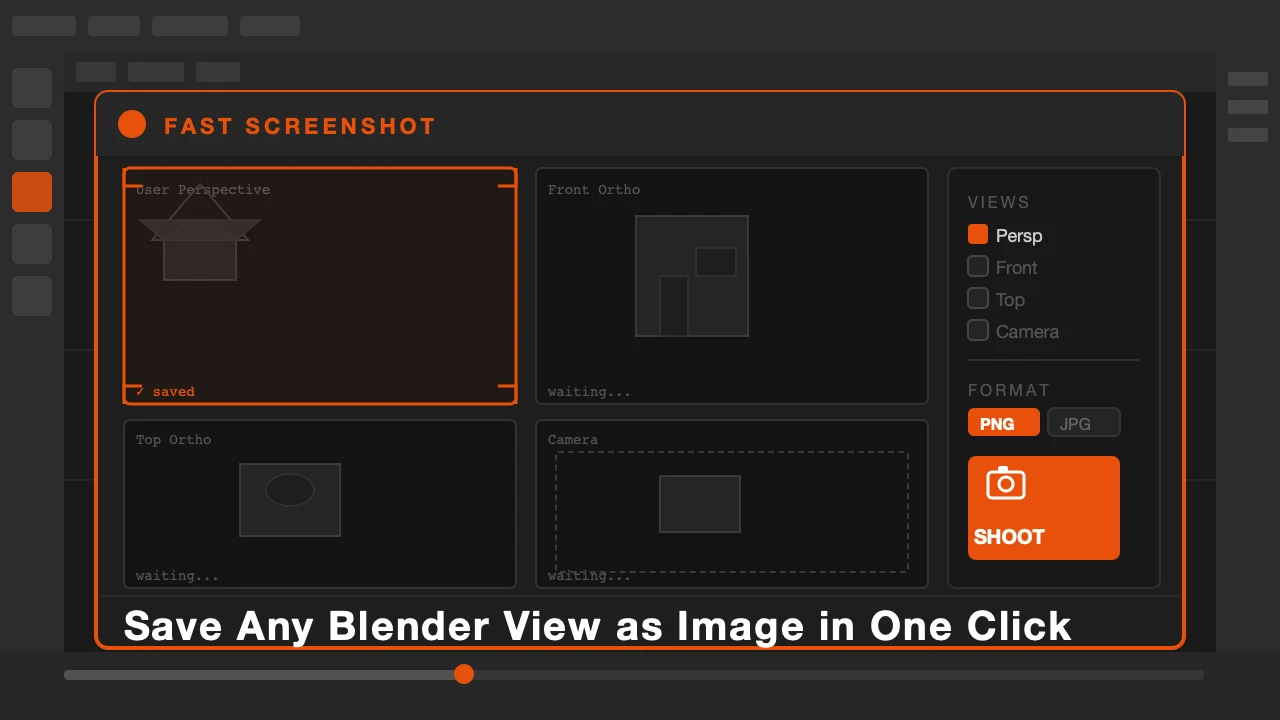
You want a quick screenshot of your viewport. Maybe for a client update, a WIP post, or your own records. So you go to the Window menu, find Viewport Screenshot, it opens a save dialog, you navigate to the right folder, type a name, and save. Then you do it again five minutes later.
That whole process should be one click. It is now.
Fast Screenshot is available on Superhive and Gumroad.
Why This Matters for Your Workflow
Capturing viewport progress should be frictionless. Every time you stop to go through a menu and a save dialog, you break concentration. Small friction adds up over a long session. The moments when you want to capture something are usually the moments when you are deep in work.
This addon removes that friction completely.
What Fast Screenshot Does
Set your output folder once. After that, every screenshot saves directly to that folder with an automatic timestamp as the filename. No dialog. No navigation. No typing.
The button sits in your viewport header or N panel, wherever you prefer. Press it and the screenshot is saved. You stay in your work.
You can configure the format: PNG, JPEG, or WebP. You can set the quality level for JPEG. The naming convention is automatic but you can adjust the prefix to match a project name if you want your files organized by project.
It captures the viewport exactly as you see it, including any overlays you have active. What you see is what you get.
Who This Is For
Anyone who shares WIP updates regularly. Freelancers sending progress to clients, artists posting to social media during a project, or anyone who documents their own process will use this every session.
It also removes the need to use external screenshot tools just to capture your viewport. The capture is internal, cleaner, and stays inside Blender.
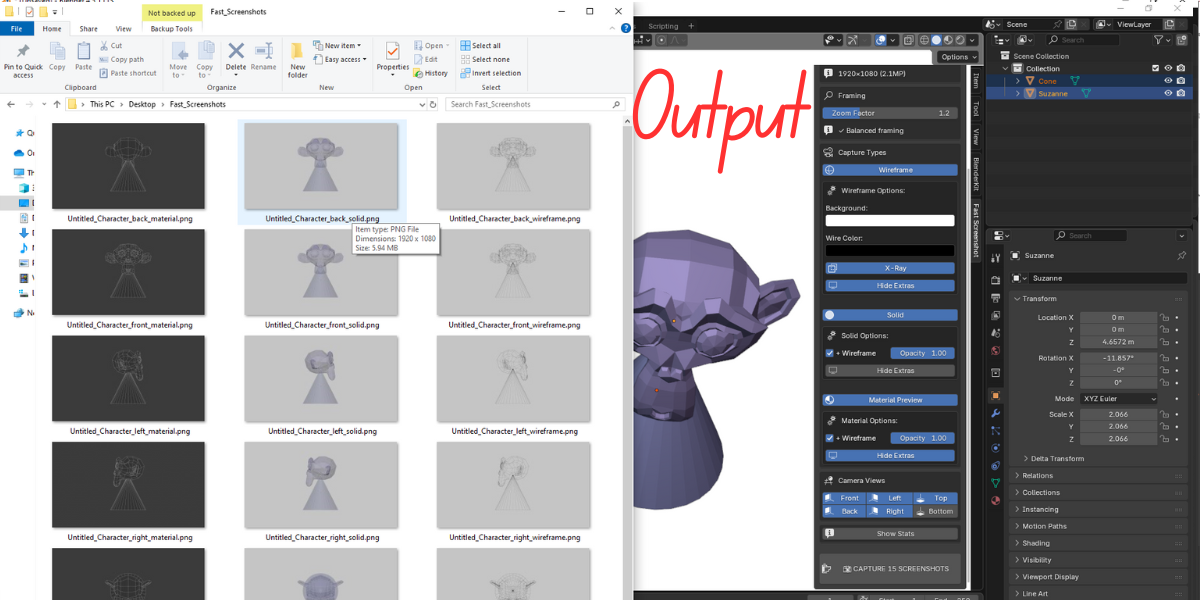
Set it up once and forget about it. It is there when you need it and invisible when you don't.
One click. Screenshot saved. Back to work.