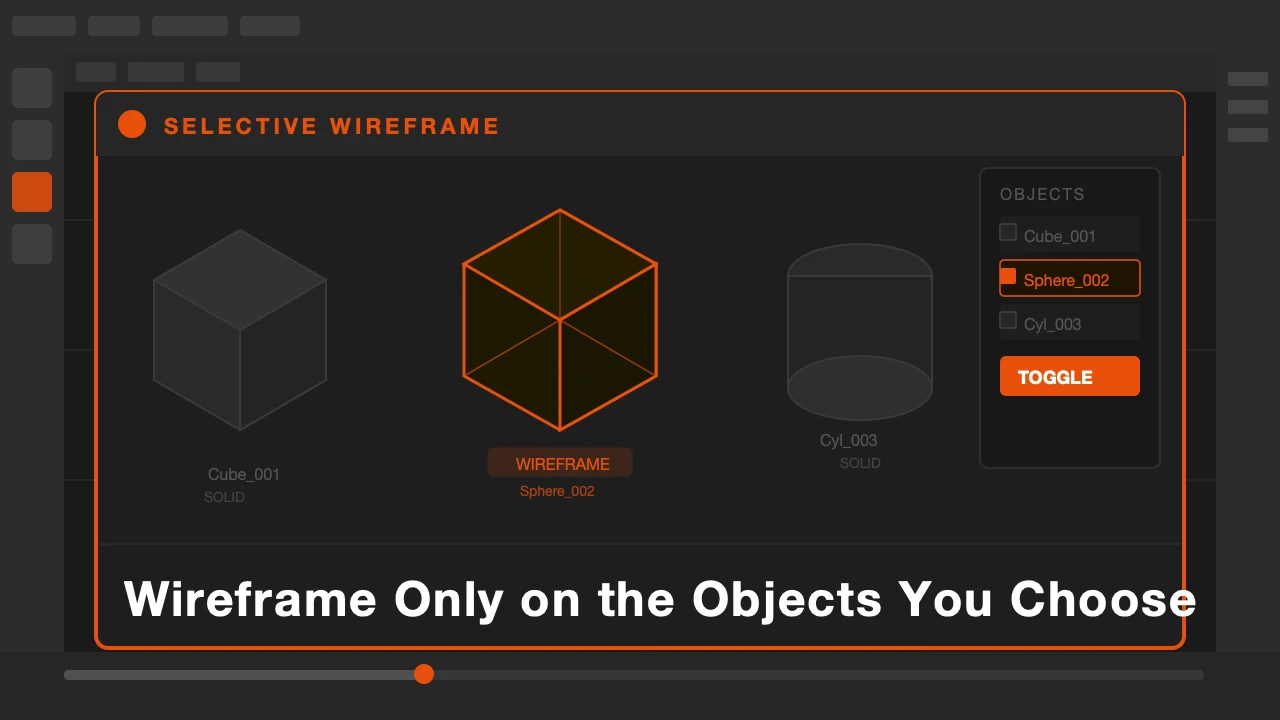
You are looking at a complex scene. You want to check the topology of one specific object. So you press Z and switch to wireframe. Now everything in the scene is wireframe. It is a mess. You cannot read anything.
You switch back to solid. You try another approach. You isolate the object, check it, then bring everything back. Three steps for something that should take zero.
Selective Wireframe is available on Superhive and Gumroad.
Wireframe That Stays Where You Put It
Blender's wireframe overlay is global. It applies to everything or nothing. That is fine for some workflows but limiting the moment you need to inspect one object inside a busy scene.
Selective Wireframe makes wireframe per-object. You toggle it on for the objects that need it and the rest of the scene stays exactly as it was.
What Selective Wireframe Does
Select any object and enable wireframe for it from the N panel or object properties. That object shows its edge topology as an overlay on top of its solid shading. Everything else in the scene stays solid.
You can enable it on multiple objects at once. Useful when you are comparing topology between two meshes side by side, or checking how geometry fits together between separate parts of a character or asset.
The wireframe color is adjustable. If you want it to stand out clearly against your scene, change the color per object. No visual ambiguity between which edges are part of which mesh.
It works in all viewport modes: solid, material preview, and rendered viewport. You never have to change your working mode just to see topology.
Who This Is For
Modelers checking edge flow on characters or hard surface objects without losing context of the full scene. Riggers who need to verify deformation topology near joints while seeing the full mesh. Anyone working on complex assets who needs topology readable without visual chaos.
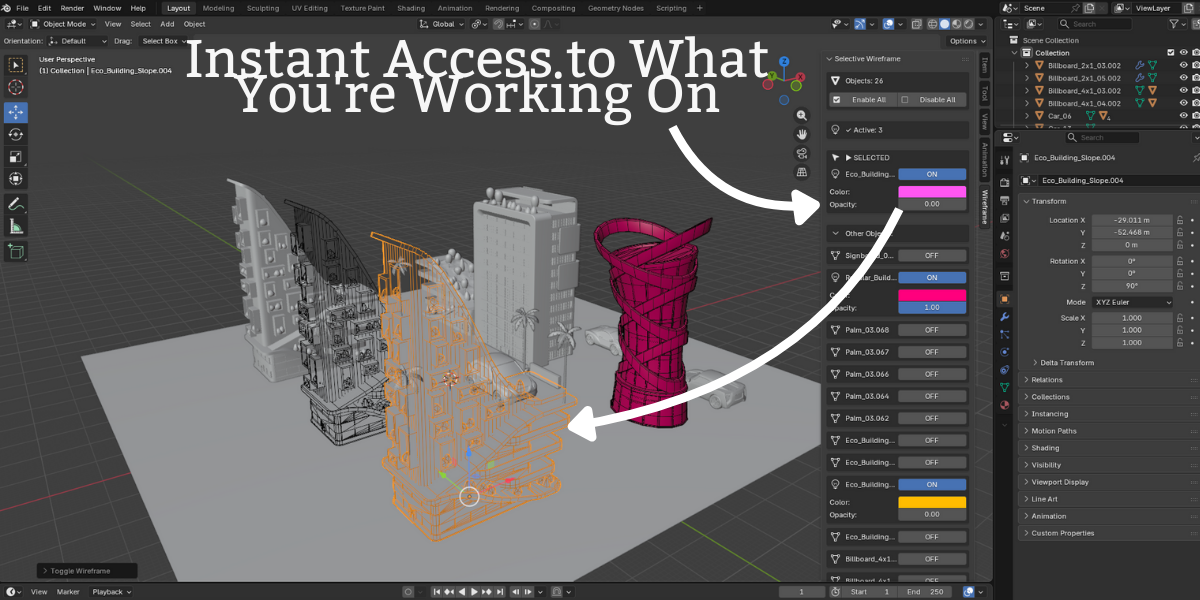
Press Z once and you get wireframe on everything. With this addon, wireframe stays exactly where you want it and nowhere else.
Check topology without the visual noise.